
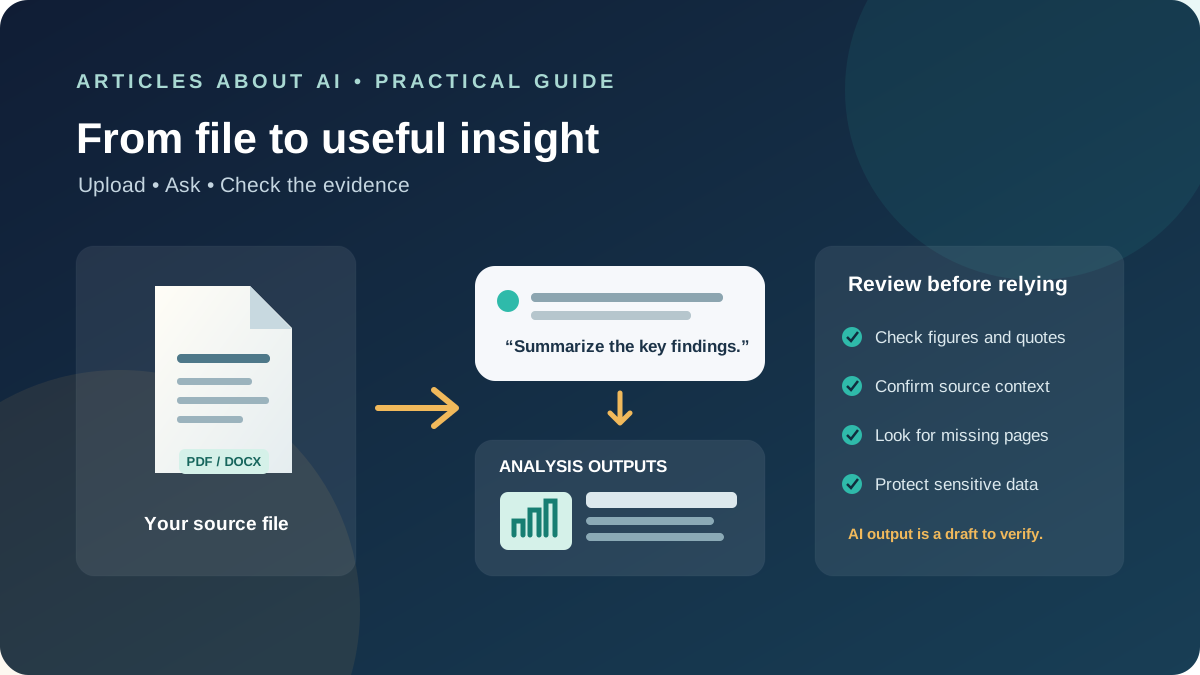
Uploading a file can turn ChatGPT from a general question-and-answer assistant into a tool for working with material you already have. Instead of copying passages into a message, you can attach a document, spreadsheet, presentation, or supported image and ask the assistant to summarize it, find specific information, compare versions, or help interpret a dataset.
The process is straightforward, but good results depend on more than pressing the upload button. You need to choose a supported file, give ChatGPT a clear task, understand what it can and cannot extract, and verify important findings against the original. This guide explains the workflow, with practical prompts you can reuse.
OpenAI documents current upload capabilities and restrictions in its Uploading files and audio help article and its data analysis guide. Availability, limits, and individual interface labels can change, so consult those official pages if an option described here does not appear in your account.
What can you upload to ChatGPT?
ChatGPT supports common document, text, spreadsheet, presentation, and image formats, subject to the account, model, workspace settings, and feature being used. OpenAI lists formats such as PDF, DOCX, TXT, XLSX, XLS, CSV, TSV, and PPTX among supported file types. Image uploads are also supported in applicable experiences. Audio has separate supported formats and availability rules.
A few distinctions matter:
- PDFs and Word documents are useful for reports, contracts, articles, manuals, and research papers.
- Spreadsheets and CSV files can be used to inspect data, calculate summaries, identify trends, and create visualizations.
- PowerPoint presentations can be reviewed for structure, messaging, or key points.
- Plain-text files can be searched, summarized, or transformed.
- Images can be examined when image input is available, but reading a picture is not the same as extracting every element from a complex document.
Google Docs shortcuts or links are not necessarily uploadable files. For example, OpenAI says a Google Docs shortcut file with the .gdoc extension cannot be uploaded directly; export the document to PDF or DOCX first.
Do not assume every file type works in every ChatGPT mode. Support can differ by plan, workspace policy, client, model, and feature. If an attachment is rejected, check the current official supported-file guidance rather than repeatedly trying the same file.
How to upload a file to ChatGPT
The precise interface can change across desktop and mobile, but the general workflow is similar.
Step 1: Open a conversation
Sign in to ChatGPT and open a new conversation or an existing one where you want to work with the file. If the material belongs to a particular project, use the appropriate project or workspace when that feature is available.
Step 2: Select the attachment option
Look for the plus sign, paperclip, or tools menu beside the message box. The label may appear as Add photos or files or a similar option. Tap or click it, then choose the file from your device.
On a phone, the file picker may show recent files, downloads, cloud storage providers, or the device’s document folders. On a computer, you can generally browse to a local file. The exact choices depend on your operating system and installed apps.
Step 3: Wait for the attachment to finish
Make sure the file appears in the message composer before sending your request. If the upload is still processing, wait rather than assuming the assistant has received the complete document.
For a large file, allow time for processing. If the upload fails, check the file size, file type, connection, account limits, and any workspace restrictions. Avoid uploading multiple copies while troubleshooting because repeated attempts may count toward usage limits.
Step 4: Explain what you want done
An attachment supplies the material; your prompt defines the task. A vague request such as “Analyze this” leaves the goal open to interpretation. A more useful request identifies the relevant sections, desired output, and any constraints.
For example:
Summarize the attached report for a nontechnical reader. Give me the five main findings, the evidence supporting each one, and any limitations the report itself acknowledges. If a point is not supported by the file, label it as uncertain rather than guessing.
You can send a focused follow-up after the first response. Ask for a simpler explanation, a table, a comparison, or the page or section where a claim appears. When accuracy matters, request source locations and check them yourself.
Useful ways to analyze an uploaded document
ChatGPT can help with several common document tasks. The best prompt depends on the question you need answered.
Summarize a long report
A summary should preserve the document’s central argument, evidence, and caveats—not just produce a shorter version of its opening paragraphs.
Try this prompt:
Summarize the attached report in 500 words or fewer. Separate its main conclusions from supporting evidence. Include the report’s stated limitations and identify any important question it leaves unanswered. Do not add outside facts.
If the report is long or complex, work section by section and then ask for a synthesis. This makes it easier to spot omissions and confirm that the final summary reflects the whole document rather than only the most prominent passages.
Find a specific fact or passage
You can ask ChatGPT to locate a date, definition, clause, name, recommendation, or discussion of a topic.
Find every section that discusses the project’s delivery deadline. Return the relevant wording, the page number or section heading when available, and a one-sentence explanation of the context. If you cannot locate the information, say so.
Treat page references and quotations as leads to verify. Page numbering can differ between a PDF viewer and the printed page labels, and text extraction may not preserve every layout detail.
Compare two documents
Attach both versions and state exactly what kind of change matters. You might compare a revised policy with its previous version, two proposals, or two drafts of a contract.
Compare these two documents. List substantive additions, removals, and changes in meaning. Organize the results by section, quote only the minimum wording needed to identify each change, and distinguish wording changes from changes to obligations or deadlines. Do not assume that a missing passage was intentionally deleted until you have checked both files.
For consequential legal, financial, or contractual differences, use the comparison as a review aid—not as a substitute for a qualified professional’s assessment.
Extract structured information
A document may contain information that is easier to use in a table than in prose. Ask for named columns and rules for missing values.
Extract all milestones from the attached project plan into a table with milestone, owner, target date, dependency, and source section. Use “Not stated” when the document does not provide a value. Do not infer a date from surrounding text unless you clearly label it as an inference.
This approach can make a report easier to audit. Check the table against the source, especially when a document uses footnotes, sidebars, or multiple columns.
How to analyze a spreadsheet
ChatGPT’s data-analysis capabilities can help users inspect structured data, calculate summaries, explore relationships, and create charts. OpenAI describes this workflow in its data analysis documentation.
Start with a clear description of the data
If possible, give each column a descriptive header and keep one record per row. Explain what each row represents, the units used, the time period covered, and any codes that might be ambiguous. A spreadsheet with columns called “Date,” “Region,” “Revenue,” and “Units Sold” is easier to interpret than one filled with abbreviations that have no explanation.
Before requesting analysis, tell ChatGPT what you want to learn. For example:
Inspect this sales spreadsheet. First describe the columns, number of records, date range, and any missing or suspicious values. Then calculate monthly revenue by region and identify the three largest month-to-month changes. State the formulas or method used, and do not treat blank cells as zero unless the data definition says they mean zero.
Ask a question that can be checked
A useful analysis request has a measurable target. Instead of “Tell me what is interesting,” ask for a defined comparison, calculation, or trend.
Examples include:
- Which product had the largest increase in units sold between the first and final quarter?
- What is the median order value by region, and how does it compare with the overall median?
- Which rows have missing dates, duplicate identifiers, or negative quantities?
- How does monthly revenue change over the period, and which months account for the largest differences?
Ask for a table of the results and, where useful, a chart. OpenAI’s documentation describes supported analysis and visualization workflows, but exact tools and outputs depend on the current ChatGPT experience.
Verify the data before trusting the conclusion
A fluent explanation can still rest on an incorrect assumption. Check the number of rows analyzed, date filters, treatment of blanks, duplicate records, currency units, and formulas. Ask ChatGPT to show its calculation or explain the steps it used. For high-stakes work, reproduce important calculations independently in a spreadsheet or trusted analytical tool.
Remember that correlation does not by itself establish causation. If sales rose after a marketing campaign, that timing alone does not prove the campaign caused the increase. Ask what the data can support and what additional evidence would be needed.
Can ChatGPT analyze images inside a PDF?
This is an important limitation to understand before uploading a report full of charts, scanned pages, diagrams, or screenshots.
A PDF can contain selectable digital text, scanned images of text, charts, or a mixture of these elements. The ability to process the file does not guarantee that every visual element will be interpreted accurately. OpenAI notes that PDF visual retrieval is available in specific experiences, including ChatGPT Enterprise, while other plans and document types may rely on text-based retrieval that extracts digital text rather than embedded images. Support depends on plan and file type; see OpenAI’s current file upload guidance.
If a chart or scanned table is important, do not assume its values were extracted correctly. You can try uploading a clear image of the relevant page when image input is available, or provide the underlying table as CSV or XLSX. Ask ChatGPT to identify any values it cannot read confidently.
For a scanned document, optical character recognition (OCR) may be needed to convert image text into machine-readable text. Even after OCR, verify names, decimal points, dates, footnotes, and similar details against the scan. These are common places for extraction errors to change the meaning.
File size, usage limits, and availability
OpenAI publishes file-size and usage restrictions in its File Uploads FAQ. The documented limits include a maximum of 512 MB for most document and presentation files, a two-million-token limit for text and document files, approximately 50 MB for spreadsheets and CSV files depending on row size, and 20 MB per image. Usage caps and storage limits also apply, and some limits may be adjusted during peak demand.
These figures are not a promise that every file of that size will process successfully. A complex workbook, image-heavy PDF, unsupported format, or file that exceeds a particular feature’s limit may still fail. Limits and availability can change, so check the official FAQ if your account displays a different restriction.
Free and paid plans may have different upload allowances. Workspace administrators can also restrict features. If you cannot see the upload option, confirm that you are signed into the intended account, check whether your current model or workspace supports the feature, and consult the product’s current help page.
How to fix common file-upload problems
If ChatGPT will not accept a file or appears to miss information, work through these checks in order.
1. Confirm the format. Convert an unsupported or awkward format to a commonly supported one, such as PDF, DOCX, TXT, CSV, or XLSX. For a Google Docs file, export it first rather than trying to upload a .gdoc shortcut.
2. Check the file size. Compare the file with the limits listed in the current FAQ. If it is too large, make a smaller copy or split it into logical sections where doing so will not remove context needed for the analysis.
3. Try a simpler file. If a workbook contains complex formulas, merged cells, multiple tables, or unusual formatting, create a clean copy with descriptive headers and a clearly defined data range. Keep the original unchanged.
4. Check whether the content is machine-readable. Selectable text usually gives the system more usable material than a scan. If a PDF consists of photographed pages, use OCR or provide a clear image of the relevant page when supported.
5. Make the task narrower. Instead of asking for every insight in a very long report, begin with a specific section, question, or set of columns. Then expand the analysis after confirming the first result.
6. Check account and service conditions. Make sure you are using the correct account and that your upload allowance has not been reached. If the service reports an error, consult the official help guidance and status information rather than repeatedly retrying an unchanged request.
7. Verify apparent omissions. If ChatGPT says a fact is absent, ask it to search for related terms or inspect a specific section. Then check the original yourself. A failure to find information is not proof that the information does not exist.
Privacy: think before you upload
A file may contain personal information, client records, confidential business material, financial details, or unpublished research. Upload only material you are authorized to share, and consider whether the task can be completed with a redacted or anonymized copy.
OpenAI’s data practices depend on the product and account type. Its documentation explains that how content may be used to improve models depends on the service and data settings; business offerings have different commitments from consumer services. Review the current Data Controls FAQ and relevant privacy information before uploading sensitive material.
Deleting a file, deleting a conversation, and managing files saved in Library are not necessarily the same action. Retention may also be affected by workspace policies and product features. Do not upload a secret merely because you intend to delete the chat afterward.
A reusable prompt for careful file analysis
You can adapt this template for a report, spreadsheet, or presentation:
Task: [State the exact question you want answered.]
Scope: Use the attached file(s). Focus on [specific pages, sections, sheets, columns, or dates].
Output: Return [a short summary, table, comparison, or list] with [the required fields].
Evidence: For important findings, provide a page, section, sheet, or row reference when available. Separate facts stated in the file from your interpretation.
Accuracy: Do not invent missing values or sources. Flag unclear text, unreadable charts, conflicting figures, and assumptions. If the file does not support a conclusion, say what is missing.
Final check: List the most important points I should verify against the original before relying on the result.
The template is deliberately explicit. You do not need to use every line for a simple task, but the evidence and accuracy instructions are especially valuable when the result will influence a decision or be shared with others.
Frequently asked questions
Can I upload files to ChatGPT on my phone?
File uploads are available in supported mobile apps as well as on the web, subject to plan limits, account settings, and feature availability. Use the attachment option in the conversation and select a file from your device or an available file provider. If the option is missing, check the current help page and make sure the app is up to date.
Can ChatGPT summarize a PDF?
Yes, when the PDF can be processed in your current ChatGPT experience. Ask for a summary that identifies the main claims, evidence, and limitations. If the PDF contains scanned pages, charts, or complex layouts, check whether those elements were actually interpreted and verify key points against the source.
Can ChatGPT analyze Excel or CSV files?
ChatGPT’s data-analysis features can work with supported spreadsheets and CSV files to calculate summaries, explore trends, and produce tables or charts. Results depend on the file structure and available tools. Clearly define the question and verify important calculations.
Why does ChatGPT miss part of my file?
Possible reasons include unsupported content, scanned pages, complex layouts, file size or processing limits, unclear instructions, or a task that is too broad. Narrow the request, identify the relevant section, and compare the answer with the original. For exact data, provide a structured spreadsheet when possible.
Can I upload multiple files at once?
Multiple-file workflows may be available, but the number of files you can attach depends on the interface, plan, and current limits. When comparing files, label each one clearly in your prompt and specify what should be compared. If the task fails, try a smaller group of files.
The bottom line
Uploading a file is only the first step. The strongest workflow combines a supported, readable file with a specific question, a defined output format, and a verification step. Use ChatGPT to make documents easier to navigate and datasets easier to explore, but treat its response as analysis to review—not as automatic proof that every page, number, or conclusion is correct.
For the latest supported formats, file limits, and feature-specific availability, rely on OpenAI’s official file upload documentation and data analysis guide.